Comfortable from a phone
The map brings together progress, return visits, nearby meeting points and the main actions needed during field service.
Platform for congregations
Organize your congregation’s preaching territories, control access by link or PIN, and view the map offline.Organize your congregation’s preaching territories, control access by link or PIN, save the map for offline viewing, and record progress from a phone.
Already have access to a map? Find an existing map
Meet PrediMaps
1:03On-screen text and instrumental music. No narration.
Territory map
Numbered territories and color-coded zones

Territory map
Open the map by link or PIN, review territories and record progress from a phone.PrediMaps connects the territory, publishers, group captains and progress in an experience designed to open, review and record information from a phone, without losing comfort on tablet or computer.
The map brings together progress, return visits, nearby meeting points and the main actions needed during field service.
They use the PIN as a credential to open the map, locate the territory, and view the available information without opening the coordination panel.
Assigned brothers can review their zones, mark progress, close their record and temporarily share their location.
View return visits, meeting points and relevant locations from the same territory map.
Ways to access
The Android app is now available on Google Play. The web remains ready for link or PIN access, and on iPhone or iPad you can save it from Safari.
Download PrediMaps from Google Play and open your maps from the app.

Open a link or enter a PIN in your browser, with nothing to install.
Open it in Safari and save it to the home screen for quick access.
Offline continuity
From the viewer, prepare an interactive copy on that phone, tablet, or computer. If the online map cannot load, PrediMaps can open the backup saved on the device.
The copy must be saved beforehand on each device. Map changes require an online update; keeping the copy depends on available space and on the browser or app retaining its data.
By responsibility
Publishers view the map, captains record progress, and coordinators review reports or prepare the map with more room.
They enter by link or PIN to view territory, progress and return visits.
They mark completed zones, close progress and share a summary.
Reviews progress, corrections, territory coverage and reports.
Reviews maps, assignments, users, access and reports.
From map to report
A short flow clarifies where the map is prepared, where the work happens and when reports are useful.
Step 1
Territories, zones, meeting points and locations are ready before sharing.
Step 2
Codes, colors and territory organization are reviewed with more workspace.
Step 3
Publishers enter by link or PIN, and captains receive assigned zones or territories.
Step 4
In the territory, zones are marked, records are closed and progress is shared from the map.
Step 5
Coordinators review reports and manage licenses only when they have permission.
Features by responsibility
Publishers and group captains mainly use the map; coordinators can review from any screen, and map preparation is left for moments with more workspace.
PIN viewing access
Territories, progress, return visits and nearby meeting points stay easy to read from a phone, without opening the coordination panel.
4 real screenshots
Also includes
Publishers
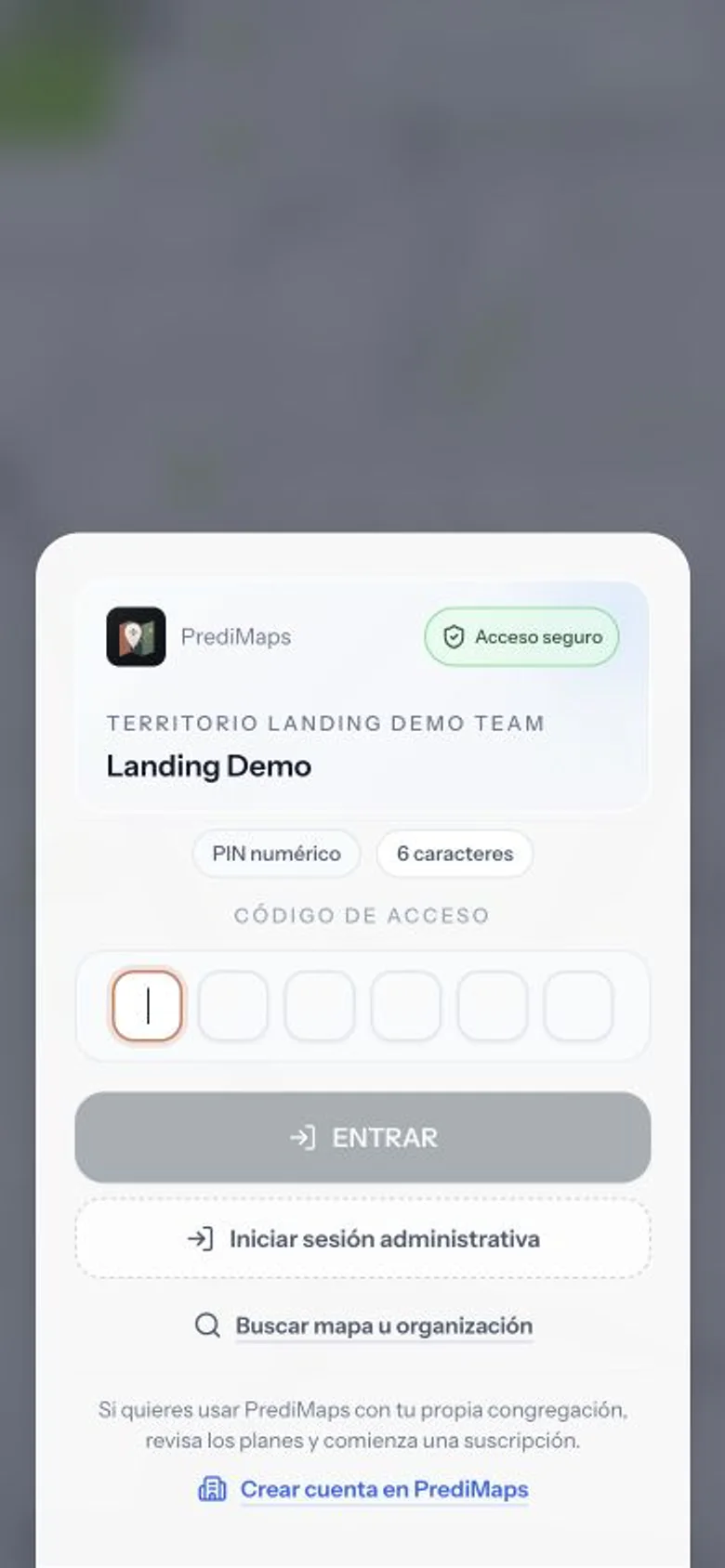
A current code opens the map from the browser or from the saved phone shortcut; it does not create or mark locations.
Related screenshots
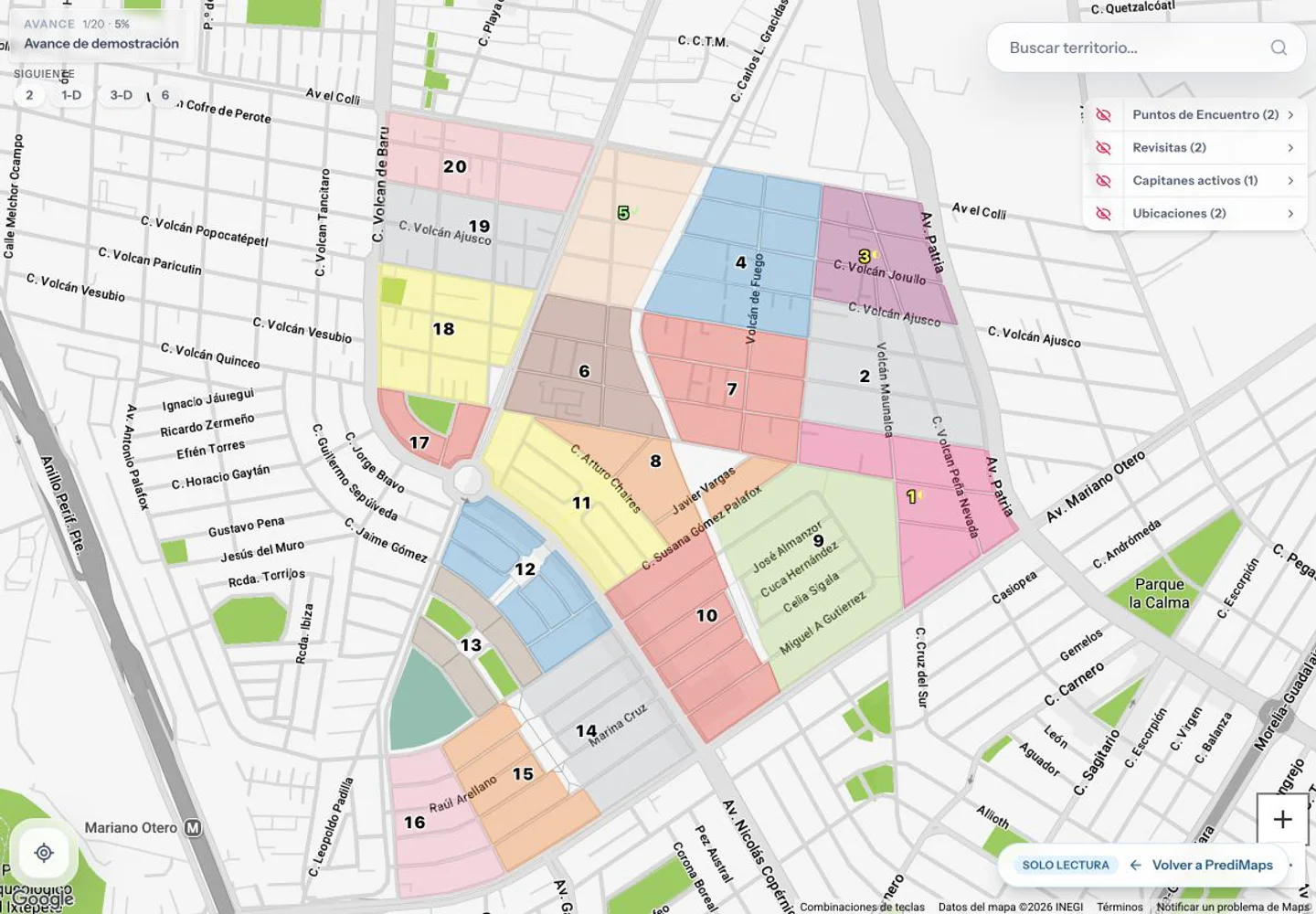
Completed, pending and suggested zones remain clear in context without changing screens.
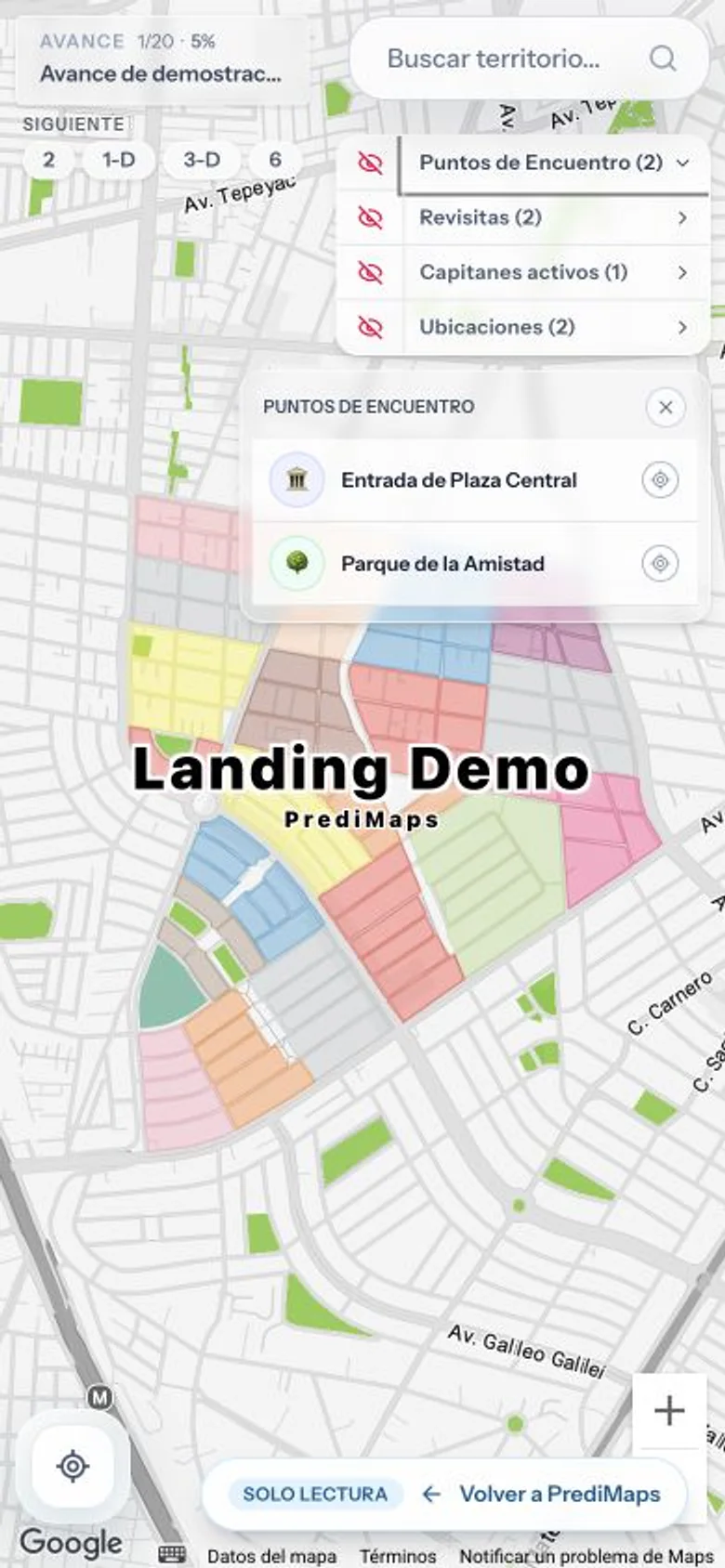
Meeting points and reference locations appear alongside the territory being viewed.
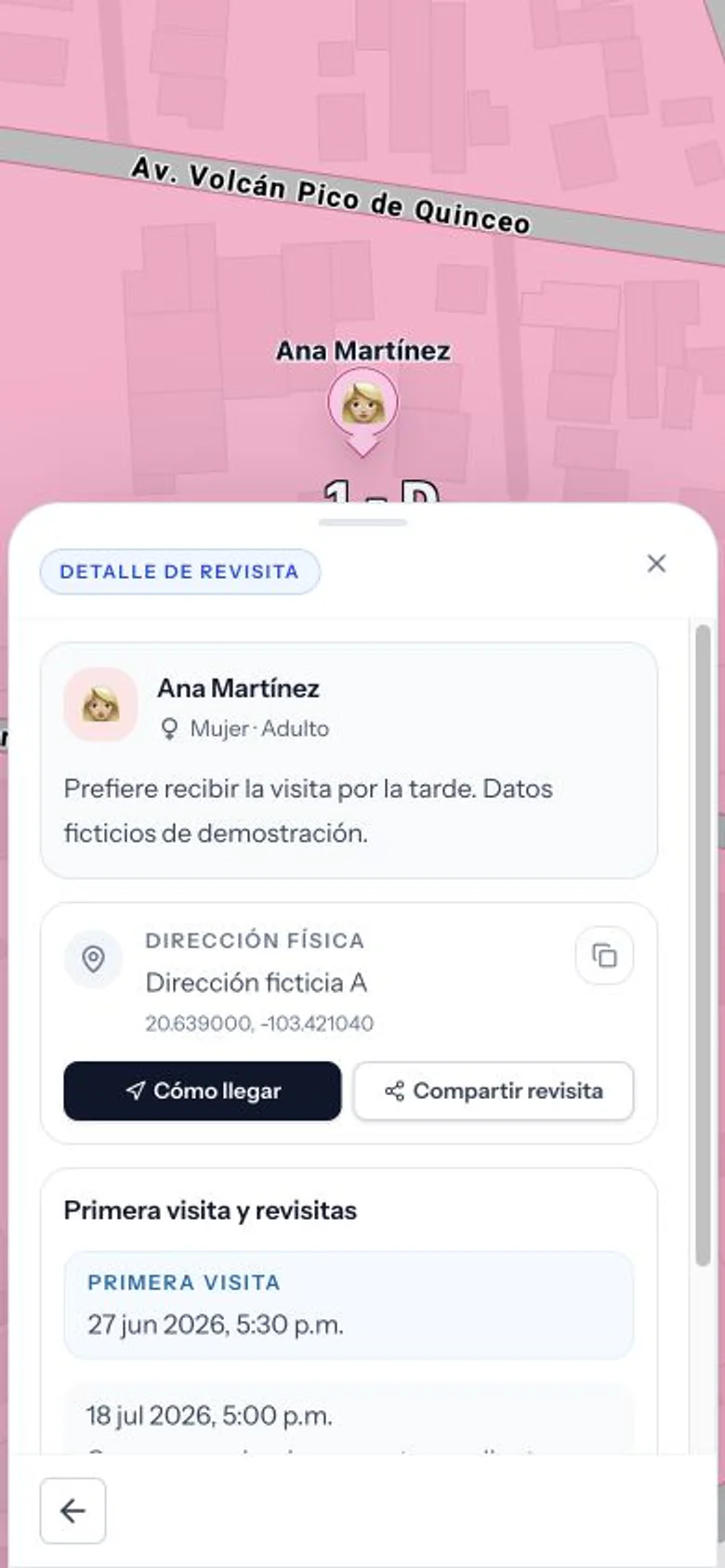
When opening a return visit, the publisher sees notes, address, next date and actions to navigate or share the reference.
Plans
Compare maps, licenses, access codes and included limits; if your case needs more support, contact can help you choose.
Common questions
Understand how a PIN controls map access, how the offline copy works, and which tasks require a permissioned account.
The PIN works as a credential for opening and viewing a shared map without an administrative account. It does not create or mark locations or grant editing permissions. Locations, territories, and progress are map information; changing them requires an account with the appropriate permissions.
On Android, you can download PrediMaps from Google Play. You can also open it from a browser link; on iPhone or iPad, save it to the home screen from Safari.
Yes. PrediMaps is a mapping app for preparing, sharing, and viewing a congregation’s preaching territories. Publishers can access them by link or PIN; permissioned accounts can record progress, coordinate assignments, and review reports.
Subscription is organized by congregation or organization and by accounts with permission. The plans page shows the current catalog before signup starts.
No. Payments are processed through an external portal and PrediMaps does not store card numbers.
No. PrediMaps is independent and does not belong to or represent religious, publishing or other entities.
Yes. Open the map while online and save it beforehand on that device. PrediMaps keeps an interactive copy with available territories, zones, progress, and references, and can open it if the online map does not load. Authorized accounts can keep pending progress marks and retry them when the connection returns; map updates require internet.
Contact
We can help with plans, licenses, adoption, privacy or support without asking for unnecessary sensitive data.